


Messenger Kids – The Messaging
3.842.47K Reviews
App Specs
- Version
- 326.0.0.48.165
- Updated On
- License
- Free
- Downloads
- 50,000,000+
- Developer
- Meta Platforms, Inc.
- Categories
- Communication
- Platform
- Android, iOS
Screenshots
 Analysis by AppCompare
Before installing Messenger Kids – The Messaging, it helps to be clear about what you want it to do: give a child a straightforward way to reach a parent-approved circle, rather than open the door to general social networking. I see its strongest use as a small, family-managed communication space. That can be valuable when relatives live apart, but it also means an adult needs to be part of the setup and ongoing decisions.
What to expect from a child-focused messenger
This is a free communication app from Meta Platforms, Inc., intended for children and rated for Everyone. It has been available since February 14, 2018, and its current version is 310.0.0.57.220. Its average rating is 3.8 from around 254,000 ratings, with over 50 million installs. Those figures suggest many families have tried it, but they do not tell you whether its approach will suit your household; the important question is how much adult involvement you want around a child’s conversations.
Unlike a standard messaging app, the point here is not to let a child search widely and start chatting independently. The experience is built around family approval and contact with people a child knows. That narrower scope is its central strength and its main trade-off: it can make first conversations feel more manageable, but it is not a replacement for a general-purpose messenger when everyone in a group already uses another service.
I would think of it less as a digital babysitter and more as a shared arrangement between child and caregiver. The app can provide tools and boundaries, but it cannot decide whether a particular contact is appropriate or teach a child what to do when a conversation feels uncomfortable. A short conversation before the first call—who is in the contact circle, when to use the app, and when to get an adult—is a useful part of the setup, not an optional extra.
Getting from setup to a first good conversation
I’d use the first conversation to establish a small, repeatable routine, not to test every control at once. Pick a familiar person, agree on a convenient time, and let the child choose whether to send a message or start a call; that makes the app feel like a practical way to connect rather than another screen to explore. Once that feels comfortable, the next question is how to handle the boundaries and occasional snags together.
Make the first setup a joint task
When I first opened the app, I was immediately struck by its colorful and engaging interface. It’s designed with kids in mind—think bright colors and intuitive navigation that even the youngest users can master. The app doesn’t require a phone number for registration, which is a plus because it keeps things simple and secure.
For a first-time user, the practical starting point is to have the adult handle the account and contact decisions while the child explores the interface beside them. Decide together which relatives or close friends belong in the initial circle, rather than adding people just to make the list look complete. Keeping that first group small makes it easier for a young child to recognize names and understand who can reach them.
Worth Reading Before You Choose

EA SPORTS FC Mobile 26 Is a Bigger Football Game, but It Takes Time

Flipboard Shows What News Apps Must Do Beyond the Feed

Switching to Android Auto Means Rethinking Your Driving Routine

Google Calendar Makes a Crowded Week Easier to Manage

Ludo King Makes the Most of the Minutes Between Plans

Baby Panda World Brings Quick Play to Modern Phones, but Its Game Library Feels Busy
It is also worth setting expectations before handing over the device: a child should know that a caregiver may be involved in managing the experience and that blocking or reporting is an option if something feels wrong. Presenting those controls calmly helps them feel like ordinary safety tools rather than a sign that trouble is expected. I would avoid turning the first session into a long lecture; a simple explanation and a familiar contact are enough to begin.
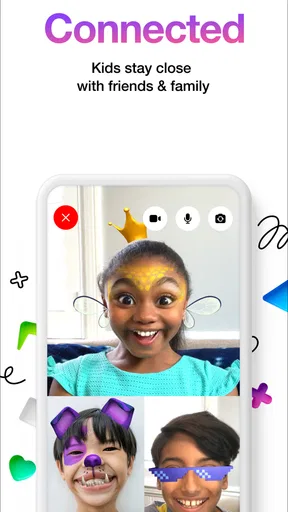
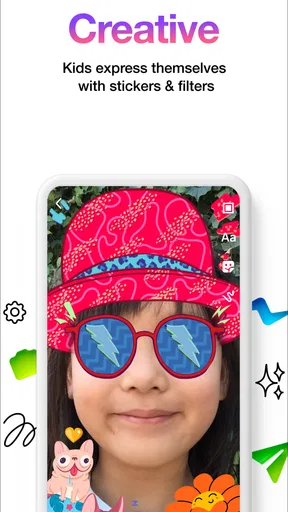
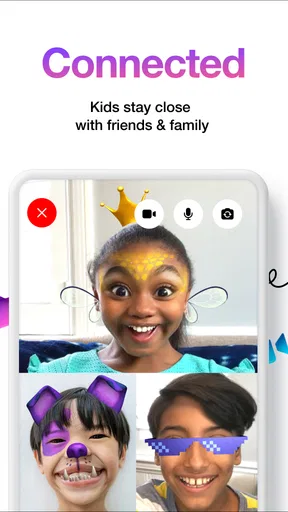
One of the coolest features is the wide array of filters and stickers. Kids can have a blast adding goofy glasses, fun hats, or silly backgrounds to their video calls. It’s like Snapchat for the younger crowd, without the risk of them wandering into areas they shouldn’t.
Reach one familiar person before exploring everything
The first meaningful success should be deliberately simple: help your child start a short call or exchange a message with someone they already know, such as a grandparent or a nearby relative. A familiar face lowers the pressure of learning a new interface. Once the child has managed that first interaction, the app is easier to understand as a useful way to stay in touch rather than just another icon on the home screen.
A realistic routine might be a child calling a grandparent after school to show a drawing or tell them about the day. The adult can help the child find the contact at first, then step back as the child becomes comfortable. That small handoff matters: the child gets a sense of independence, while the family still chooses who is reachable. If the call does not connect or the other person is busy, treat that as a normal part of communication and try messaging instead of repeatedly tapping through settings.
The playful camera effects can make an initial call less awkward, especially for a child who is shy on video. I would use them as an icebreaker, not the purpose of the call. A quick “show Grandma your silly hat, then tell her about your picture” gives the child a natural transition from playing with effects to actually talking. That is a more useful first test than opening every menu or trying to explore all the controls at once.
Parental controls that need a little context
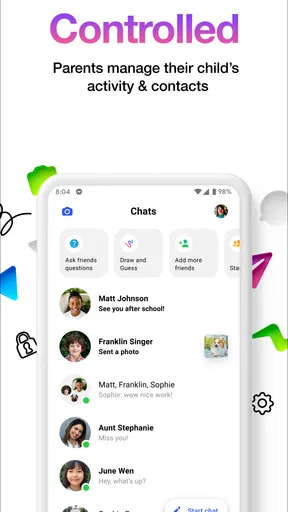
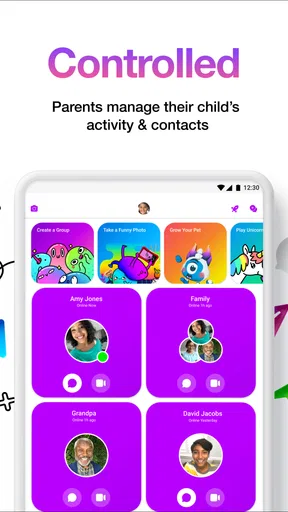
For parents, the control panel is a godsend. You can manage every aspect of your child's experience. Approving contacts? Check. Setting usage limits? Double check. You even get a report of your child’s activity, so you’re always in the loop. It’s reassuring to know that Messenger Kids – The Messaging puts parents in the driver’s seat.
Plus, you can easily connect your Facebook account to monitor everything from your own app. It’s like having a remote control to your child’s digital world.
Those controls are most useful when they support a clear household routine. For example, a parent can agree with a child that the app is for contacting approved people, then decide together when it is appropriate to use it. Usage limits can help make that boundary concrete, but they do not replace a conversation about interruptions, bedtime, or putting the device away during family time. I would treat monitoring as a way to stay involved, not as a reason to assume every interaction will take care of itself.
There is also a practical trade-off in connecting the child’s experience to an adult’s Facebook account: it can make oversight more convenient for a family that already uses Facebook, while feeling like extra friction to someone who does not. Before installing, consider who will be the responsible adult and whether they are comfortable managing the parent side. If several caregivers are involved, agree on who handles contact approvals and limits so the child is not caught between conflicting rules.
Where it differs from ordinary messaging apps
Compared with a standard messenger, this app puts a child-focused, parent-managed circle ahead of broad discovery and independent account use. That is a meaningful difference for a young user who needs a carefully introduced way to contact relatives. A regular messaging app may be more convenient for an older teen whose friends and family already use it, but its wider social setting is not necessarily the right first step for a younger child.
It also differs from a simple phone call: messages let a child reach someone without requiring both people to talk at the same moment, while video gives relatives a more personal way to connect. The choice depends on the child. A talkative child may enjoy a brief video catch-up; one who feels self-conscious may prefer a message. I would let the child choose between those formats when practical, rather than treating video as the only successful use.
The app is most compelling for families who value a managed contact list and want a playful interface for younger children. It is less compelling if your child only needs to reach one adult by voice, if your family already has a simple routine that works, or if you do not want to manage a separate child-focused setup. In those cases, a regular call or the family’s existing communication method may be easier and more familiar.
Safety tools are useful, not a substitute for guidance
Safety is a big focus, and the app doesn’t disappoint. There are no ads, and data collection is minimal. Kids can’t delete messages, so you can review conversations if needed. And if any issues arise, children can block or report users in just a few taps.
The app’s design encourages positive interactions. Kids earn badges for good behavior, like being kind or helpful during chats. It’s a neat way to motivate them to use the app responsibly.
For a parent, the practical value of these features depends on making sure a child knows how to use them. I would show the child where blocking and reporting are and explain that they can come to an adult even if they are unsure whether a conversation is a problem. A child may not recognize every uncomfortable situation as something to report, so open-ended check-ins—“Was anything confusing or unpleasant?”—can be more helpful than only asking whether everything was fine.
There is a balance to strike with conversation review, too. Knowing that a caregiver can look in may reassure some families, but a child should not be led to believe that a safety tool guarantees nothing can go wrong. I would explain the family’s expectations in plain language, then review activity in a way that fits the child’s age and trust. The aim is to keep communication open, not to make every ordinary chat feel like an investigation.
Common points of confusion on the first day
One likely source of confusion is the distinction between the child’s app experience and the adult’s management role. A child may see a bright, playful messenger, while the caregiver is responsible for decisions that shape who can be contacted and how the app fits into family routines. It helps to explain that the child can use the app, but the adult helps manage the circle of people on it.
Another is expecting the app to make a child’s communication habits responsible automatically. Limits, activity information, and contact controls can support a family’s rules, but children still need practice with basic judgment: do not share something they would not want a caregiver to see, pause if a message feels strange, and ask for help. Those lessons apply beyond this one app, so I would use the first few conversations as a chance to build them.
Families may also wonder whether this should replace the messaging service adults already use. Usually, I would not treat it as a full replacement. Its value is the child-focused setup and its playful presentation; adults may still prefer their existing app for their own group chats and logistics. Keeping those purposes separate can make the choice clearer: use this for a child’s approved connections, and keep adult coordination where it already works.
Safety first, fun always
Safety is a big focus, and the app doesn’t disappoint. There are no ads, and data collection is minimal. Kids can’t delete messages, so you can review conversations if needed. And if any issues arise, children can block or report users in just a few taps.
The app’s design encourages positive interactions. Kids earn badges for good behavior, like being kind or helpful during chats. It’s a neat way to motivate them to use the app responsibly.
Those safeguards are reassuring, but they are not a reason to skip a family agreement. I would make it clear that the child can stop a conversation, bring a concern to an adult, and ask before adding a new person to their communication circle. That approach gives the child practical choices instead of relying on a parent to notice every issue after it happens.
Who will get the most from it
I would recommend it most readily to a family introducing messaging to a younger child who wants to stay in touch with relatives or close friends and whose caregiver is willing to stay involved. The bright design can make the first interaction less intimidating, and a carefully chosen contact list gives the child a manageable place to practise messaging and video calls.
I would be more cautious about recommending it to a household looking for a hands-off solution, or to a child who is ready for a broader social experience and mainly needs to join the same chats as older friends. It may also be unnecessary when a child has no regular reason to message independently. A simple call with an adult’s help can be enough; adding an app should solve a real communication need, not create one.
The app is free, which lowers the barrier to trying it, but the real cost is attention: a caregiver needs to make choices about contacts and boundaries. I would start with one or two trusted people and a single, low-pressure call, then decide whether the child actually uses it. That small trial gives you a better basis for continuing than installing it and assuming the family will naturally settle into a routine.
Wrapping It Up
In a world where digital safety is more important than ever, it strikes the right balance between fun and security. It’s a fantastic introduction to the world of messaging for kids, with enough parental controls to keep even the most cautious parents satisfied.
So, if you’re looking for an app that lets your kids chat with friends and family while keeping them safe, this might just be the perfect solution. Give it a try and see how it fits into your family’s digital life!
Pros
- Safe environment with parental controls.
- No ads to distract or influence kids.
- Fun filters and stickers for creativity.
- Easy to connect with approved contacts.
- Simple interface designed for children.
Cons
- Limited features compared to regular Messenger.
- Requires parental setup via Facebook.
- No offline messaging capability.
- Video quality may vary with connection.
- Lacks educational content integration.
FAQs for Messenger Kids – The Messaging
What is Messenger Kids and how does it differ from regular Messenger?
Messenger Kids is a messaging app designed specifically for children, offering a safe and controlled environment for young users to communicate. Unlike regular Messenger, this app allows parents to manage their child’s contact list and monitor their activities, ensuring a secure and age-appropriate experience without the need for a phone number.
Is Messenger Kids safe for my child to use?
Yes, Messenger Kids is designed with safety in mind. It includes robust parental controls, allowing parents to approve contacts and monitor messages. The app also lacks in-app purchases and advertisements, reducing risks associated with online interactions. Parents have full visibility, making it a safe option for kids.
What devices are compatible with Messenger Kids?
Messenger Kids is available on both Android and iOS devices, making it accessible to a wide range of users. It can be downloaded from the Google Play Store or Apple App Store and is compatible with most smartphones and tablets, ensuring children can connect easily regardless of the device they use.
Can my child communicate with non-Messenger Kids users?
No, children using Messenger Kids can only communicate with contacts approved by their parents. This ensures a safe and controlled environment. All contacts, whether they use Messenger Kids or regular Messenger, must be approved by parents, preventing any unauthorized interactions and maintaining a secure communication circle.
Does Messenger Kids offer any educational or entertainment features?
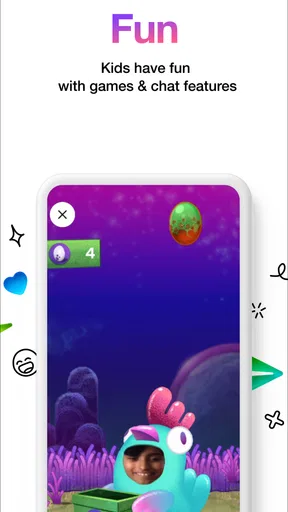
Yes, Messenger Kids includes features that are both fun and educational. The app offers interactive games, creative filters, and drawing tools that encourage creativity and learning. These features are designed to be age-appropriate and safe, allowing children to have fun while developing new skills.


